
This feature helps to chat between the Vendor and the Client. "Firebase" in smartChat configuration requires Cloud Firestore to work. The conversation screen of Firebase Realtime Chat will pop up when you click on the Google icon at the Smart Chat tab after you signed in with your email.
Steps to configure:
Features > Smart Chat > turn on Enable Smart Chat and Use Realtime Chat > enter Admin Email and Admin Name > click UPDATE:
If it is still not able to turn on this feature, please double-check the following instructions:
Enable Cloud Firestore at your Firebase project by following Cloud Firestore Get Started Docs until Step 5.
The result will be like this:
Using Firebase SmartChat as a normal account:

Using Firebase SmartChat as the admin account:
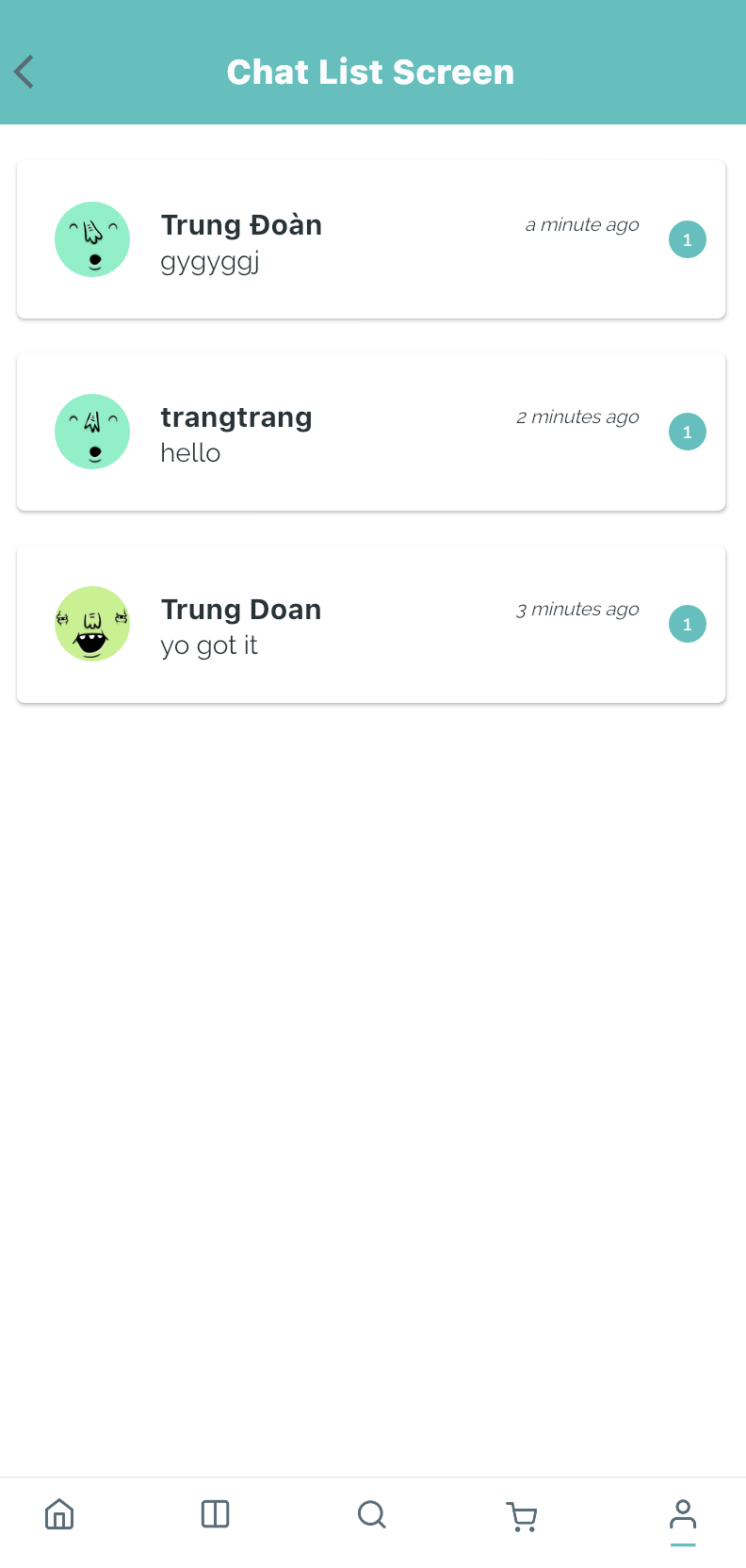
Note: Your Admin Email will be the default email that all of your users would communicate with. By signing in using Admin Email, you would see the chat list containing all of the messages from your customers when choosing FirebaseChat at SmartChat.